Adding Your First Transactions
Last updated on August 10, 2025
Welcome to taxtallee! The first and most important step to unlocking your portfolio's insights and getting reports is to add your transaction data. A complete and accurate trade history is the foundation for tracking performance, managing corporate actions, tracking dividends and distributions as well as generating tax reports.
We offer three flexible ways to get your data into the platform. Let's walk through each one.
Method 1: Add a Single Transaction Manually
This is the perfect method for adding new trades as they happen or for inputting a small number of historical transactions.
- 1. Navigate to any page (like Dashboard or Holdings) and click the Add Entry button in the top right corner.
- 2. From the Add Entry page, select Add Trade Manually.
- 3. In the modal that appears, you can add either a listed Stock/Security or a Custom investment.
When to use 'Stocks/Security' vs. 'Custom'
Use 'Stocks/Security' for: Any publicly listed asset like shares on the ASX, NYSE, NASDAQ, or listed ETFs. Our system will automatically find and link the asset, pulling in relevant data.
Note we may not have data for delisted stocks.
Use 'Custom' for: Unlisted assets like cryptocurrency, property, or private investments. You will need to provide all the details manually.
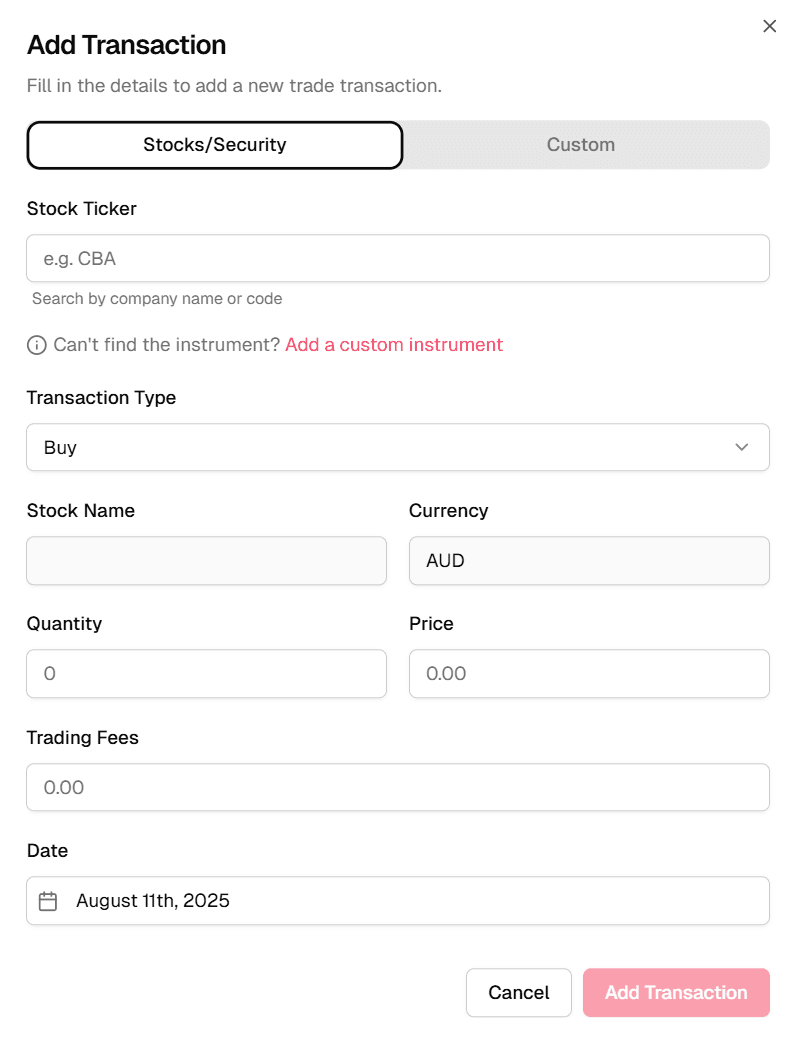
For listed assets, fill in the required fields like Ticker, Transaction Type, Quantity, Price, and Date. For foreign stocks, you may also require an exchange rate but we can also suggest one for you. Once you're done, click Add Transaction to save your trade details.
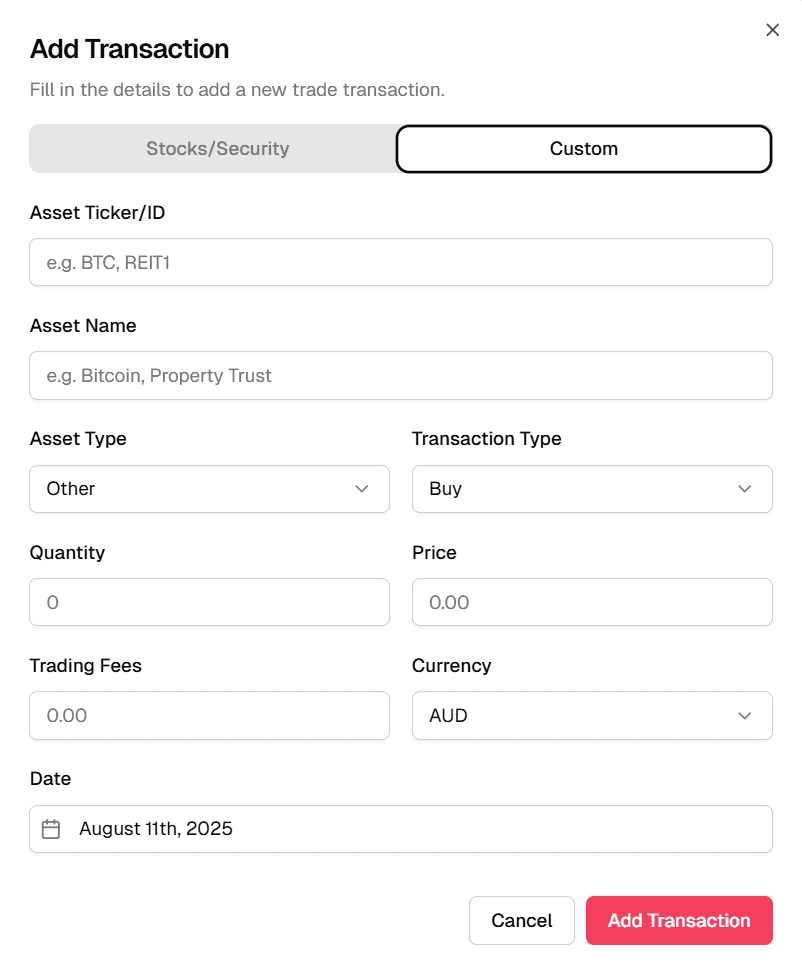
For unlisted assets, in addition to the fields listed above, you will need to give your asset an ID/Ticker, Asset name, and specify its Asset Type.
Method 2: Bulk Import from a File
If you have a long history of trades, bulk importing from a CSV or XLSX file is the most efficient way to get started. This is a two-step process:
- 1. From the Add Entry page, select Bulk Upload Trades.
- 2. Choose whether you are uploading Listed Stocks or Custom Investments.
On the uploader page, you can download our template file and an example to get you going. It's crucial to format your data to match the columns in the template. Be careful not to change the table headings in any way.
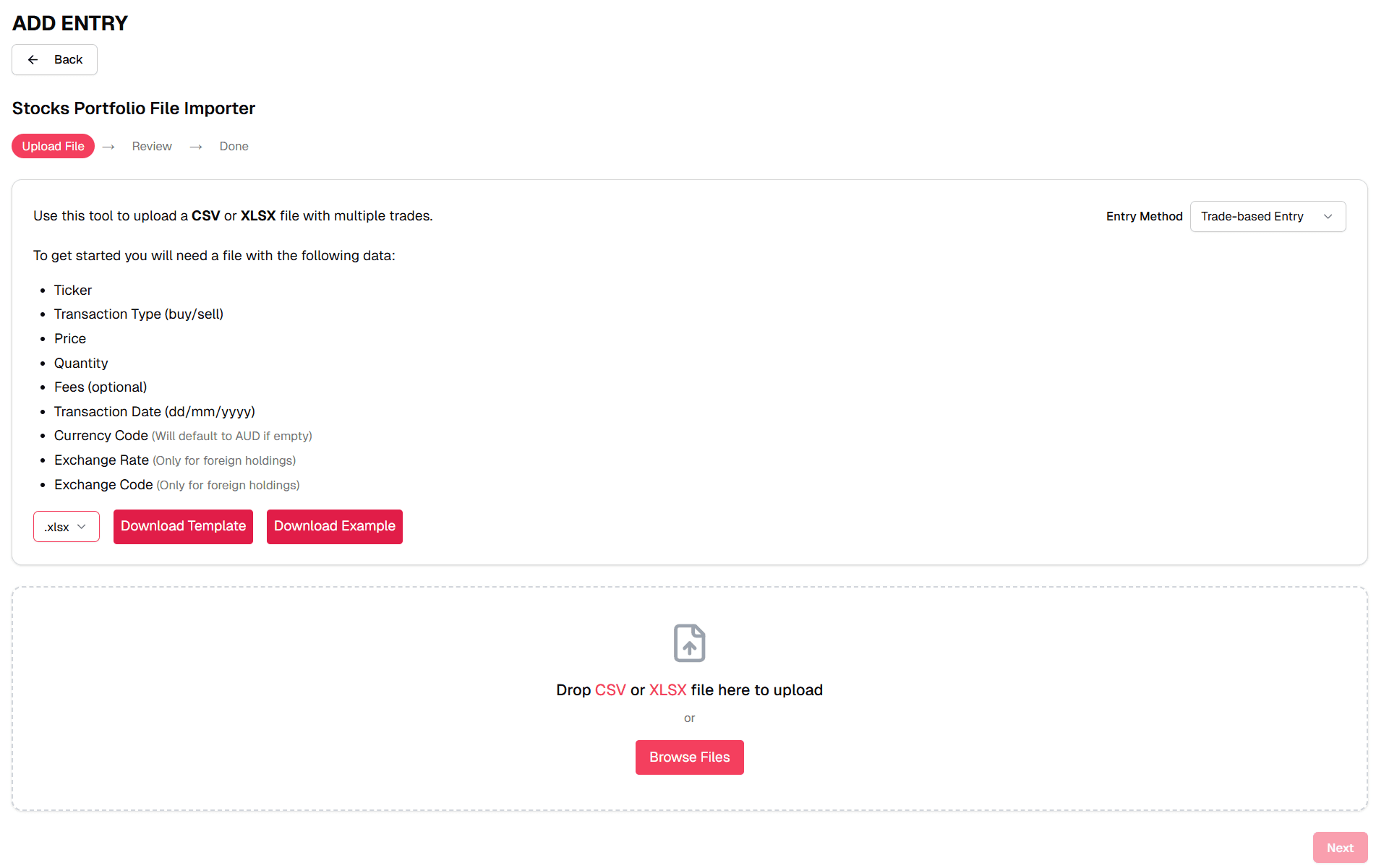
Once your file is ready, drag and drop it into the upload area or browse to select it. Our system will validate your data, match your tickers to known securities, and flag any potential errors for you to review before confirming the import.
Next Steps
Once your transactions are added, your dashboard will come to life! You can now explore your holdings, view your portfolio's performance, and see how taxtallee begins to simplify your investment tracking.